> For the complete documentation index, see [llms.txt](https://ayakaleaf-pro.ayaka.space/llms.txt). Markdown versions of documentation pages are available by appending `.md` to page URLs; this page is available as [Markdown](https://ayakaleaf-pro.ayaka.space/on-premises/configuration/overleaf-toolkit/mcp-server.md).
# MCP Server
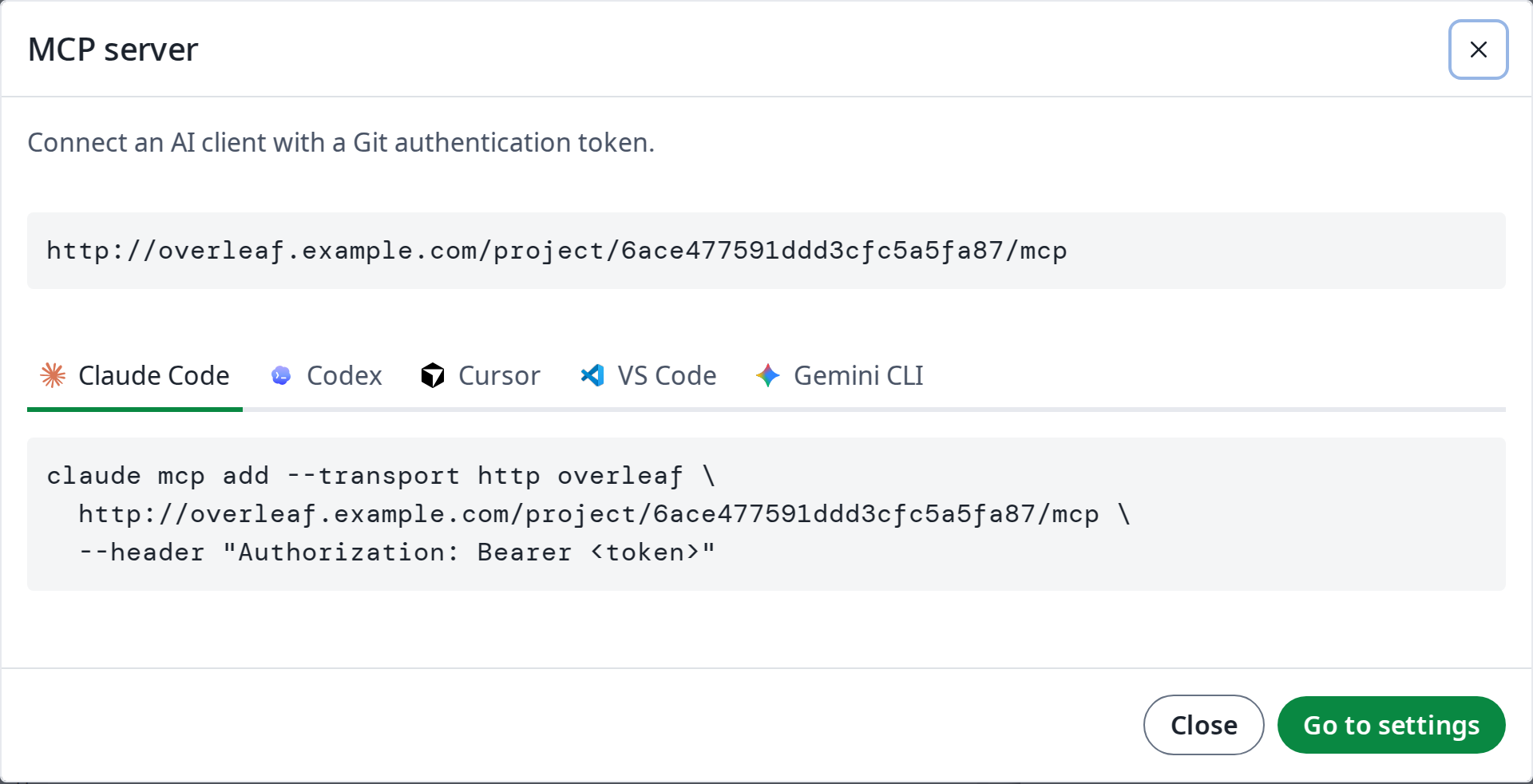
Each project has an MCP server, so AI clients such as Claude Code, Codex, Cursor, VS Code or Gemini CLI can work on it: read and edit its files, compile it, read the LaTeX log, download the PDF and answer comments.
{% hint style="info" %}
This feature is developed by [ayaka-notes/ayakaleaf-pro](https://github.com/ayaka-notes/ayakaleaf-pro). It is introduced from v6.3.1 and later.
{% endhint %}
Integrations → MCP server
### Setup
The MCP server comes with the Git integration: enable [git-bridge](/on-premises/configuration/overleaf-toolkit/git-integration.md), and the MCP server is available too. There is nothing else to configure.
### Connect an AI client
1. In **Account Settings**, generate a Git authentication token. The same token is used for the MCP server and for Git.
2. In the editor, open **Integrations** and click **MCP server**. It shows the address of the project's MCP server, `https:///project//mcp`, and how to add it to each AI client: copy the command, and replace `` with your token.
### Usage
Once connected, ask the AI client in plain words. For example:
| You ask | The AI client uses |
| ----------------------------------------------- | ----------------------------------------------------------- |
| *Fix the typos in the introduction.* | `read_file`, `edit_file`: the edits show live in the editor |
| *Compile the project and fix the LaTeX errors.* | `compile`, `get_compile_log`, `edit_file` |
| *Answer the open comments, then resolve them.* | `list_comments`, `reply_to_comment`, `resolve_comment` |
| *Switch to XeLaTeX and download the PDF.* | `update_settings`, `compile`, `get_output_file_link` |
### Tools
| Group | Tools |
| -------- | ------------------------------------------------------------------------ |
| Project | `get_clone_info`, `get_settings`, `update_settings`, `list_versions` |
| Files | `list_files`, `read_file`, `edit_file`, `write_file`, `delete_file` |
| Compile | `compile`, `get_compile_log`, `get_output_file_link`, `word_count` |
| Comments | `list_comments`, `reply_to_comment`, `resolve_comment`, `reopen_comment` |
Edits made with `edit_file` and `write_file` show live in the editor and merge with those of collaborators. For many files at once, binary files or renames, the AI client can also clone the project with Git and push.
### Permissions
The MCP server follows the project's sharing settings, like Git:
* Everyone who can view the project can read it, compile it and download its output.
* Only the owner and editors can change its files and settings.
* Reviewers can also reply to comments, and resolve or reopen the comments they started.
* Viewers who joined with a link cannot see the comments, as in the editor.
---
# Agent Instructions
This documentation is published with GitBook. GitBook is the documentation platform designed so that both humans and AI agents can read, navigate, and reason over technical content effectively. Learn more at gitbook.com.
## Querying This Documentation
If you need additional information that is not directly available in this page, you can query the documentation by asking a question.
Perform an HTTP GET request on the following URL with the `ask` and `goal` query parameters:
```
GET https://ayakaleaf-pro.ayaka.space/on-premises/configuration/overleaf-toolkit/mcp-server.md?ask=&goal=
```
`ask` is the immediate question: it should be specific, self-contained, and written in natural language.
`goal` is what the user is ultimately trying to achieve, the reason they need the answer. Sharing it helps GitBook give you a better, more relevant answer. A goal is most helpful when it describes the outcome the user wants rather than restating the question. For example, with `ask=how do I create an API token`, a goal like `automate deployments from our CI pipeline` lets GitBook tailor the answer to that use case.
The response will contain a direct answer to the question and relevant excerpts and sources from the documentation.
Use this mechanism when the answer is not explicitly present in the current page, you need clarification or additional context, or you want to retrieve related documentation sections.